How Do You Create a Google Review Link and QR Code?
Open your Business Profile on a computer, select Read reviews, then Get more reviews, and copy the link or save the QR code. Then test it signed out and put it where customers pause.
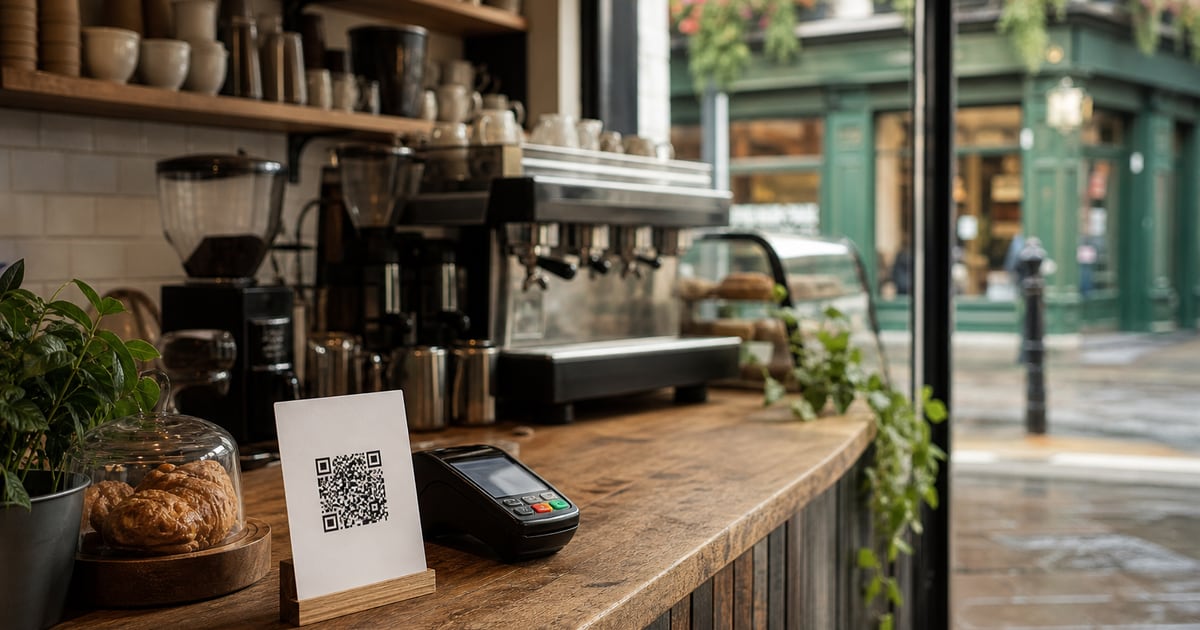
You create a Google review link and QR code from your Business Profile on a computer: open the profile, select Read reviews, then Get more reviews, and copy the link or save the QR code. The link opens the review box for your business directly, so a customer taps the stars and writes, with no searching.
That is the whole job in Google's version, but the details decide whether the link actually produces reviews. This guide covers the steps as they work in November 2026, what you can and cannot do from a phone, how to test the link before you print it, where to put the link and the code, how to see which placements work, and the mistakes that quietly waste them.
How to create a Google review link, step by step
Google's help page on creating a review link or QR code sets out the route. Sign in to the Google Account that manages your Business Profile first.
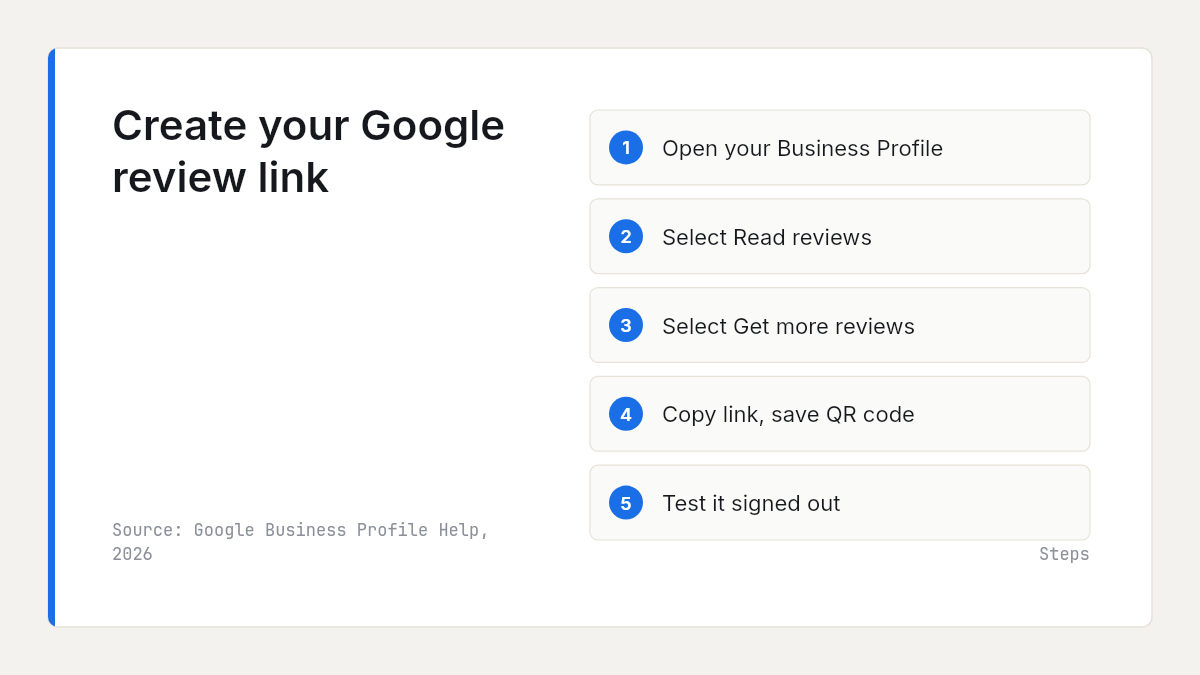
- Open your Business Profile on a computer. Searching for your business name on Google while signed in brings up the panel you manage it from.
- Select Read reviews. This opens your reviews, the same place you reply to them.
- Select Get more reviews. Google shows your review link and a QR code that leads to the same place.
- Copy the link. Select the copy icon and paste the link somewhere you will find it again, such as a note on your phone or the message template in your booking software.
- Save the QR code. Right-click it, choose Save image as..., and keep the file with your print templates.
The same page reminds businesses that reviews must reflect a genuine experience, and that offering free or discounted goods or services in exchange for reviews is fake engagement, which Google strictly prohibits. That applies to anything you print beside the code.
Can you get the link or QR code on a phone?
Partly. Google's help page says that, currently, review QR codes can only be generated on a computer browser, not on mobile devices, and its documented steps for the link are the computer ones too. Some owners see an option to ask for reviews inside their profile in the Google Maps app, but Google's help does not describe it, so if you use one, test what it produces before you send it to anyone.
The practical answer is to do it once on a computer and keep the link where your phone can reach it. Email it to yourself, save it as a text shortcut, or add it to your quick replies, so you can paste it into a message at the end of a job.
Two other links look similar and do a different job. Google's guide to managing customer reviews explains that Share review creates a link to one existing review, and sharing your profile gives a link to the profile page. Neither opens the box for writing a new review, so customers who receive them have to find the button themselves.
Test the link before you print it
A link that works for you may not work for a customer. You are signed in as the owner; they are not. Before the link goes on anything printed, run four checks.
- Open it in a private browser window, signed out. Google should ask you to sign in, then open the review box. Google's tips for getting more reviews confirm that customers must be signed in to a Google Account to leave a review.
- Open it on an iPhone and an Android phone, with and without the Google Maps app installed.
- Check the name and address at the top of the review box. If you have more than one location, each has its own profile and its own link, and a link from the wrong branch sends reviews there.
- Scan the printed code from where the customer will stand, in the light it will hang in, with at least two different phones.
If the sign-in step puts off customers who have no Gmail address, our guide to leaving a Google review without Gmail explains how they can use the email address they already have.
Where to put your Google review link and QR code
Put the link where customers read on a phone, and the QR code where they stand still with a phone in their pocket. A code on paper they take home works too, because they can scan it later.
| Place | Link or QR code | What makes it work |
|---|---|---|
| Follow-up text or WhatsApp message | Link | Sent within hours of the visit, with their name in it |
| Thank-you or aftercare email | Link | One link only, near the top |
| Email signature | Link | A plain line: "Leave us a review on Google" |
| Receipt or invoice | Both | The code beside the total, which everyone reads |
| Counter or table card | QR code | At eye level by the card reader, not behind the till |
| Waiting room or salon chair | QR code | Where people wait with their phone already out |
| Van | QR code | On the back doors, read while you unload, not on a side panel seen in traffic |
| Parcel insert | QR code | On the card customers keep, not the box they recycle |
Change the wording, not the link. One line such as "Tell others how we did" is enough. Anything that hints at the stars you want, or offers something for a review, breaks Google's rules; our guide to what not to say when asking for a review lists the phrases to drop.
How to see which placements work
Google does not tell you which link or code produced a review. Three habits fill the gap.
- Count new reviews each week. Write the number down before you add a placement and for a month after it. A rise that starts the week the cards went out is a good sign.
- Use your own web address as a signpost. Set up a short address on your website, such as yourbusiness.co.uk/review, that forwards straight to the Google review link, with a different ending for each place (/review-card, /review-van). Your website analytics then counts the visits from each. If your Google link ever changes, you update it in one place.
- Ask new customers where they saw it. Not every review comes from your link, but a pattern in the answers is still useful.
Keep any forwarding page a straight redirect. A page that asks "Were you happy?" and sends only the happy customers to Google is review gating, which Google's content policy prohibits as selectively soliciting positive reviews. The CMA's fake reviews guidance also describes encouraging just the satisfied customers to leave reviews as cherry-picking. Our article on review gating explains the rules in full.
Mistakes that waste a Google review link
- Asking people to search for you. "Find us on Google and leave a review" adds steps, and every step loses people who meant to do it.
- Sending the profile link instead of the review link. It opens your profile, not the review box.
- A code nobody can scan. Behind the till, at knee height, under glossy lamination that reflects the lights, or printed smaller than a stamp.
- A tablet on the counter. Google's policy says businesses should not require or pressure customers to leave reviews while on the premises. Hand over the code and let them review later.
- An offer on the card. A discount or a free coffee for a review breaks Google's policy, however small.
- Sending it at the wrong moment. A link sent before the customer has seen the result asks them to review a promise. Our guide to the best time to ask for a review covers the timing by business type.
Why one link makes a difference
For a small profile, every review shows. A quarter of the 46,800 local businesses we track across the UK and Australia have eight or fewer Google reviews. For them, each new review visibly changes the count customers see, and the fewer steps between the request and the review box, the more of the customers who mean to review actually do it.
Once the link is in place, the words around it matter most. Our guide on how to ask for Google reviews has lines that work in person and by message, and getting more Google reviews without asking constantly shows how to build the link into what you already send. For email, see what a review request email should say.
To see how your review count compares with every competitor in your area, a Rate My Ratings market report shows each business's rating, review count and share of positive reviews, and the themes customers praise or complain about across the market.
What to do this week
- On a computer, open your Business Profile, select Read reviews, then Get more reviews, and copy the link.
- Save the QR code image, then test the link signed out on two phones.
- Add the link to your follow-up message and your email signature.
- Print the code for the counter and the receipt, and scan it from where customers stand.
- Write down this week's number of new reviews, so you can see the change next month.
Frequently asked questions
- Where do I find my Google review link?
On a computer, sign in to the Google Account that manages your Business Profile, open the profile, select Read reviews, then Get more reviews. Copy the link with the copy icon. The same panel shows a QR code leading to the same review box, which you can save by right-clicking it and choosing Save image as.
- Can I make a Google review QR code on my phone?
Not at the moment, according to Google's help page, which says review QR codes can only be generated on a computer browser. Make it once on a computer, save the image and copy the link, then send the link to your phone so you can paste it into messages after each job.
- Do customers need a Gmail account to use the review link?
They need to be signed in to a Google Account, but it does not have to be a Gmail address. Google lets people create an account with an email address they already use. If a customer is not signed in, the link asks them to sign in first and then opens the review box.
- Do I need a separate review link for each location?
Yes. Each location has its own Business Profile, with its own reviews and its own link. Get the link from each profile separately and check the name and address at the top of the review box before you print it, so reviews of one branch do not land on another.

Rate My RatingsNewsletter
What reviews say about local markets, in your inbox.
New articles and findings from the blog, as they're published.
Check your inbox.
If this address isn't subscribed yet, we've sent it a link to confirm. Nothing is sent until you click it.
That didn't go through. Check the email address and try again.
Hold on a moment, then subscribe again.