How to verify your Google Business Profile in 2026
Google picks your verification method: a video, a phone or text code, an email, a live call or a postcard. What each involves, what the video must show, why it stalls, and when an edit means verifying again.
To verify Google Business Profile ownership in 2026, open your profile, select Get verified and complete whichever method Google offers you. Where it is available, Google recommends a short video recording made on your phone; the others are a phone or text code, an email, a live video call and a postcard. Google chooses the method, not you, and says its review can take up to five working days once you finish.
Verification is what lets you edit your details and interact with customers. This guide covers each method, what the video must show, businesses without a shopfront, why verification stalls, when you must do it again, and owners and managers.
Which verification methods does Google offer in 2026?
Google's help page on verifying your business lists five methods, and says some businesses need to complete more than one. You see the ones open to you after you select Get verified on your profile.
| Method | How it works | Good to know |
|---|---|---|
| Video recording | You film the business on your phone and upload it from the profile | Recommended by Google where offered; at least 30 seconds, one unbroken take |
| Phone or text | Google calls or texts the business number with a code | An automated phone menu will not receive the code |
| Google sends instructions to an email address | You need access to that inbox while you verify | |
| Live video call | A support representative watches while you show the business on camera | Only during opening hours, from the business itself |
| Postcard | A five-digit code arrives by post at your address | Most arrive within 14 days; codes expire after 30 days |
In some cases Google verifies a profile instantly: when you have already verified your website in Google Search Console, or when a business with ten or more locations uses bulk verification. Bulk verification is not open to service-area businesses.
Two newer options have been spotted this year but are not on Google's help pages: a "Submit a business photo" option in September, and a request to upload a photo of a government ID in October. Google has not confirmed either, so treat them as tests.
What decides which method you are offered?
Google decides, and you cannot change it. Its help page says the choice depends on your business type, public information about the business, your region and your opening hours.
What you can control is the information Google checks when you verify Google Business Profile details:
- Answer the set-up questions accurately. The flow asks whether customers visit you, you travel to them, or both. In February 2026 Search Engine Roundtable reported a warning that these answers carry weight later: choosing online only rules a business out.
- Match the real world. Use the name on your signage and invoices, and an address where customers come, or none if they do not.
- Set your real opening hours. Live video calls only run during them.
- Settle your categories first. Our guide to Google Business Profile categories covers the choice, and a pending postcard code stops working if you change one.
Verify Google Business Profile ownership with a video recording
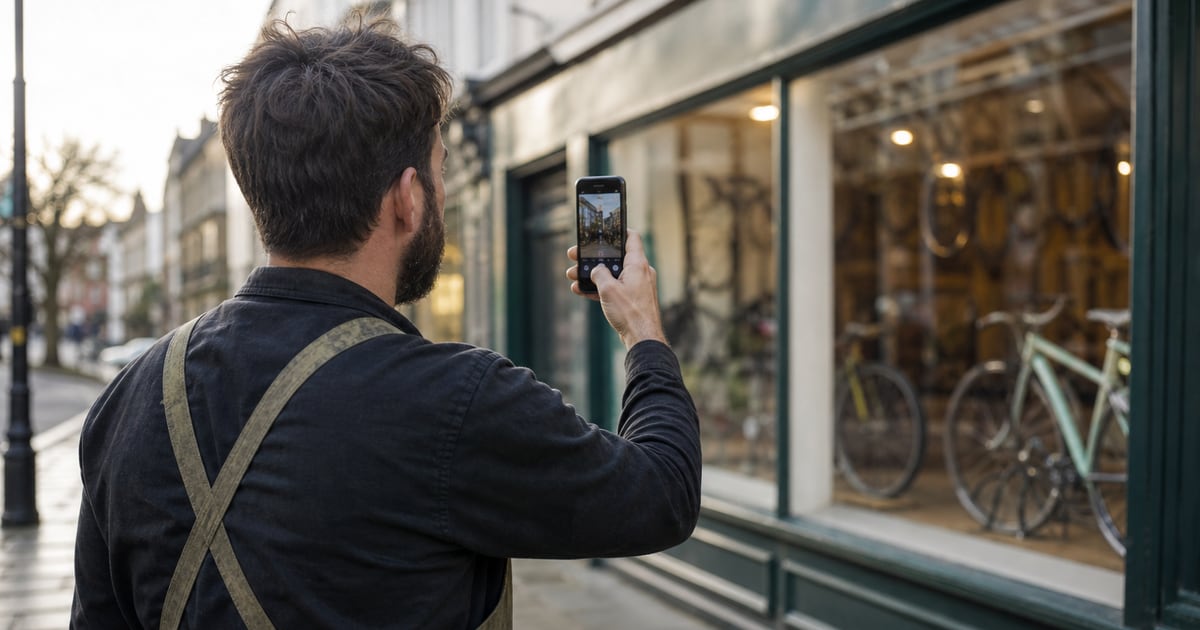
Google's rules for verifying with a video recording are strict. You record live and upload from a mobile device through your Business Profile, as pre-recorded clips are not allowed. The video must be one complete take with no breaks or edits, and at least 30 seconds long.
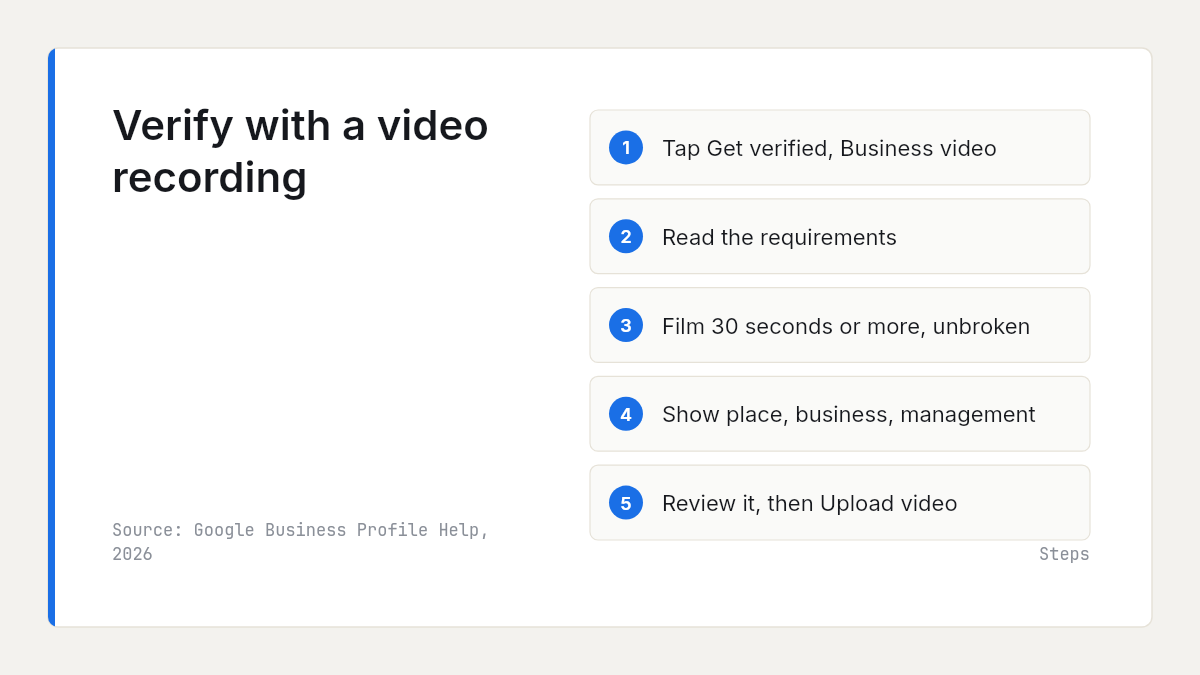
- Open your Business Profile on your phone and tap Get verified. You may be asked for a phone number first.
- Tap Business video, then Next, and read the requirements. Allow access to location, camera and microphone if asked.
- Tap Start recording, then the record button, and film the three things below without stopping.
- Tap stop, watch it back, and tap Try again if anything is missing.
- Tap Upload video.
For a business that customers visit, the video must show:
- Where you are: street signs, building numbers, or nearby businesses or landmarks.
- That the business exists: the shop front, showroom or signage, with the business name on a permanent fixture and matching the profile.
- That you manage it: something only staff can reach, such as the till, kitchen, storeroom or point-of-sale system.
Keep bank, tax and ID numbers and other people's faces out of shot. One route covers all three: a road sign across the street, the sign over your door, then inside to the counter or storeroom. Rehearse it, because a break means starting again.
Service-area businesses without a shopfront
If you go to customers rather than serving them at your premises, as a plumber or mobile groomer does, Google's service area rules say to remove your address from the profile and list the areas you cover instead, up to 20 of them. You still verify, but the video changes:
- Where you operate: street signs or landmarks near your business address. If you work from home, film signs and landmarks in your neighbourhood.
- That the business exists: tools, equipment, products, a workspace, business cards or branded clothing.
- That you manage it: film yourself doing the work, or unlocking business-only assets such as a branded van. Google also accepts a business permit, invoice or utility bill in the profile's name.
Do not add your home address to make verification easier: Google says not to show an address where you do not serve customers. For what service areas do for visibility, see our guide to ranking in surrounding towns.
How long does verification take?
Google says its review takes up to five working days after you complete a method, occasionally longer, and you get a confirmation email when it is done. Before that, phone and text codes and emails arrive while you verify, a video takes as long as filming and uploading, and a live call waits for your opening hours. A postcard is slowest: most arrive within 14 days. Instant verification, where offered, has no wait.
Follow progress through Google's page on how to check your verification status, which also has the Contact us route.
Why verification fails or gets stuck, and what to do
Work through the usual causes in order:
- The video was rejected. Open the profile and select Review issues to see what was missing, such as a business name that was not visible on the shop front. Record a new video with everything from the first one plus the missing piece.
- The upload failed. Google's advice is to upload it again; a stronger connection helps.
- The Get verified button came back. Google could not fully verify you. Try again, or choose another method if more than one is listed.
- The phone code never arrived. An automated menu on your business line blocks it, so answer on a direct line or choose text.
- The postcard code does not work. Changing the name, address or category while you wait invalidates it, and so does requesting a new code, which also adds delay. Keep the code private: Google never asks for it.
- Nothing after five working days. Use Contact us from the verification status page.
Whatever happens, do not create a second profile to start afresh. A duplicate breaks Google's rules and is one route to a suspension, covered in our guide to a Google Business Profile suspended. If you are verified but missing from Maps, start with why your business is not showing up on Google Maps.
When does Google ask you to verify again?
Google's help on editing your profile says that if you change your business name after verification you might need to verify again, and if you move to a new address you must. Its verification page adds that a request for more information usually follows recent changes to business details: select Get verified and go through it again.
So plan edits to your name, address and categories. Change one at a time, keep them identical to your signage and documents, and note the date, as our guide to whether your Google Business Profile is working suggests. If you are rebranding, change the sign before the profile: a new video has to show a name that matches.
Owners, managers and taking over a profile
After verification, Google's page on owners and managers lets you add people from People and access in the profile settings. Owners have full control; managers can do almost everything except add or remove users or delete the profile. Invite staff and agencies this way instead of sharing your login. New owners and managers wait seven days before they can transfer primary ownership or remove other users.
If someone else verified the profile, such as an old agency or the seller of a business you bought, request ownership rather than starting again. The current owner is emailed and has three days to respond. If they do not, you may be offered the option to claim the profile and verify it yourself. Service-area businesses without a physical location have to contact Google support instead.
Where reviews fit
Verification is what lets you answer customers in public. Google's help on managing reviews says that before you can reply to reviews, you must verify your business. Across 297,844 recent Google reviews of UK businesses in the 20 trades we track, 54% carry an owner reply. An unverified profile cannot add one, so its reviews sit unanswered beside rivals who reply. Our guide to responding to negative Google reviews covers what to say once you can.
Once you are verified, a Rate My Ratings market report shows where your reviews stand: every business in your category and area with its Google rating, review count and share of positive reviews, and the themes customers praise and complain about across the market.
What to do this week
- Search for your business name while signed in, and check whether a Get verified button still shows: if it does, you still need to verify Google Business Profile ownership.
- Before you start, check that the name, address or service areas, hours and categories match the real business.
- If video is offered, plan the route (street, sign, then something only staff can reach) and film it in one take of at least 30 seconds.
- If a postcard is your method, make no edits until the code arrives, and enter it within 30 days.
- Add staff and any agency as managers from People and access, instead of sharing your login.
- Put a reminder in your diary five working days after you submit, and use Contact us if nothing has changed.
Frequently asked questions
- How long does it take to verify a Google Business Profile?
Google says its review takes up to five working days after you complete a method, occasionally longer, and you get a confirmation email when it is done. Phone, text and email codes arrive while you verify. Postcards usually arrive within 14 days and their codes expire after 30. Where Google offers instant verification, through Search Console or bulk verification, there is no wait.
- Can I choose how to verify my Google Business Profile?
No. Google decides which methods you see, based on your business type, public information about it, your region and your opening hours, and you cannot change them. Some businesses must complete more than one. What you can control is accuracy: a name that matches your signage, the right address or service areas, and real opening hours, which also set when a live video call is possible.
- What should a Google Business Profile verification video show?
Three things in one unbroken take of at least 30 seconds: where you are, such as street signs or nearby landmarks; that the business exists, such as the shop front with the name on permanent signage, or tools and branded clothing for a service-area business; and that you manage it, such as the till, a storeroom or a branded van. Keep other people's faces and sensitive numbers out of shot.
- Can I verify a Google Business Profile without a shop or office?
Yes. A service-area business that visits customers removes its address from the profile and lists up to 20 service areas instead, but still verifies. For a video, Google asks for street signs or landmarks near your business address, or in your neighbourhood if you work from home, your tools or equipment, and proof you run the business, such as a branded van or a matching invoice.
- Why does Google keep asking me to verify my business again?
Usually because something changed. Google says a new business name might mean verifying again and a new address means you must, and requests for more information usually follow recent edits. A rejected video or a failed method also brings back the Get verified button. Make one change at a time and keep every detail matching your signage and documents.

Rate My RatingsNewsletter
What reviews say about local markets, in your inbox.
New articles and findings from the blog, as they're published.
Check your inbox.
If this address isn't subscribed yet, we've sent it a link to confirm. Nothing is sent until you click it.
That didn't go through. Check the email address and try again.
Hold on a moment, then subscribe again.
Rate My RatingsNewsletter
What reviews say about local markets, in your inbox.
New articles and findings from the blog, as they're published.
Check your inbox.
If this address isn't subscribed yet, we've sent it a link to confirm. Nothing is sent until you click it.
That didn't go through. Check the email address and try again.
Hold on a moment, then subscribe again.